

You set it up once from Kesef, in More › Integrations › Apple Pay: install Kesef's shortcut, give it permission and turn on the automation. On iOS 17 to 26, instead of turning it on, you create it and add the shortcut to it. From then on, every Apple Pay payment in a shop lands in Kesef on its own. It's part of Kesef Pro.
You pay by tapping your iPhone and the expense lands in Kesef on its own, with the amount and the merchant, without opening the app. For that, a Wallet automation has to be set up once in the Shortcuts app: Apple doesn't let any app set this up on its own, as a security measure. Kesef walks you through it, and these are the same steps you'll see in the app.
The 3 steps (iOS 27)
You need an iPhone with iOS 17 or later (compatible with iOS 27), Apple Pay set up in Wallet and Kesef Pro. In Kesef, go to More › Integrations › Apple Pay: the guide detects your iOS version and shows you the steps that apply. On iOS 27 there are three, and each one has its button in the app ("Install shortcut", "Run once" and "Open in Shortcuts").
Install the shortcut
Tap the button, then "Add Shortcut". If you already had it, choose "Replace".
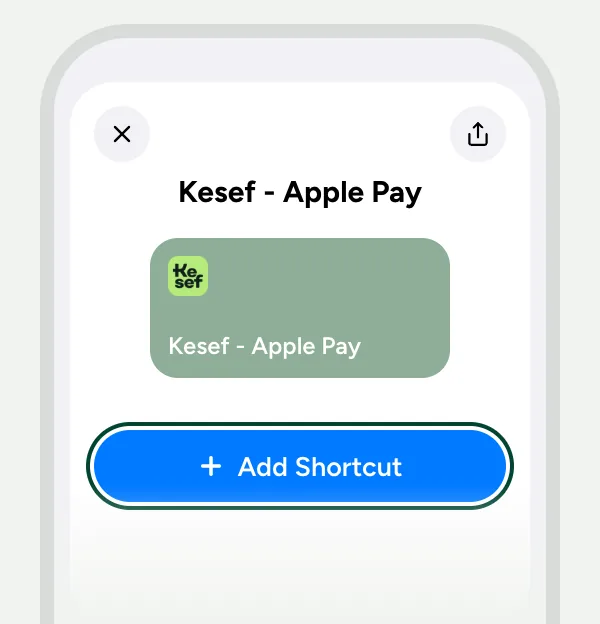
This is how it looks in Shortcuts Give it permission
Tap the button: the shortcut runs once and Shortcuts asks if it can use Kesef. Tap "Allow". It’s just a test, nothing gets logged.
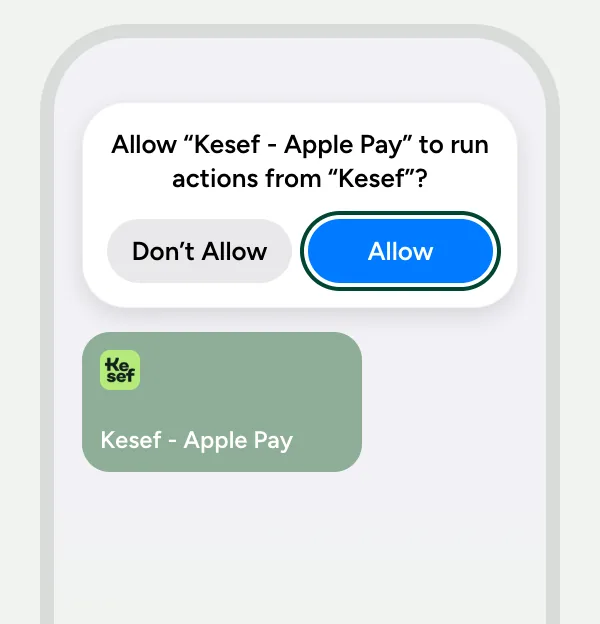
This is how it looks in Shortcuts Turn on the automation
Tap the button to open the shortcut (if you see "Edit" at the top, tap it). Tap the arrow next to "Any Card", turn on "Automation" and go back with the back arrow.
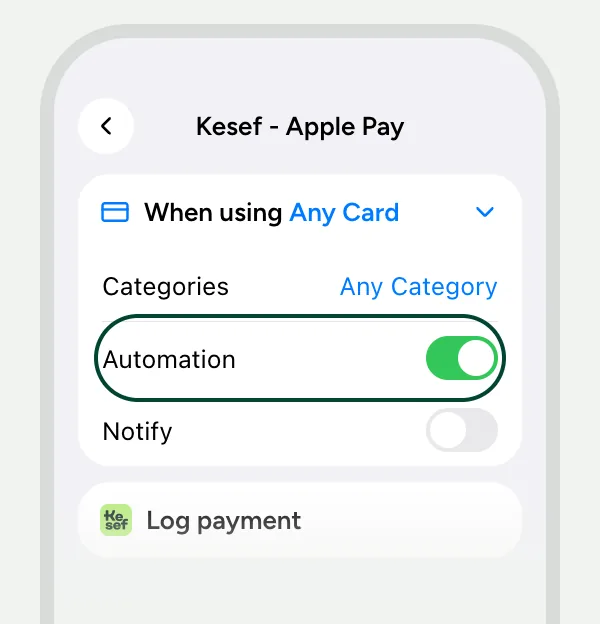
This is how it looks in Shortcuts
All set! Every time you pay with Apple Pay in a store, the expense is logged on its own and you get a notification. If your bank takes a while to confirm the payment, we’ll let you know so you can fill in the amount.
The first time you pay, keep your iPhone unlocked: if Shortcuts asks for permission, tap "Always Allow". After that it works on its own, even when locked.
On iOS 17 to iOS 26: one more step
Before iOS 27, the automation is created by hand in Shortcuts. The first two steps are the same: install the shortcut and give it permission. Then, instead of turning it on, you create it and tell it which shortcut to run:
Create the automation
Tap the button and choose "Wallet". Leave the cards you use checked, choose "Run Immediately", leave "Notify When Run" off and tap "Next". One more step: telling it which shortcut to run.
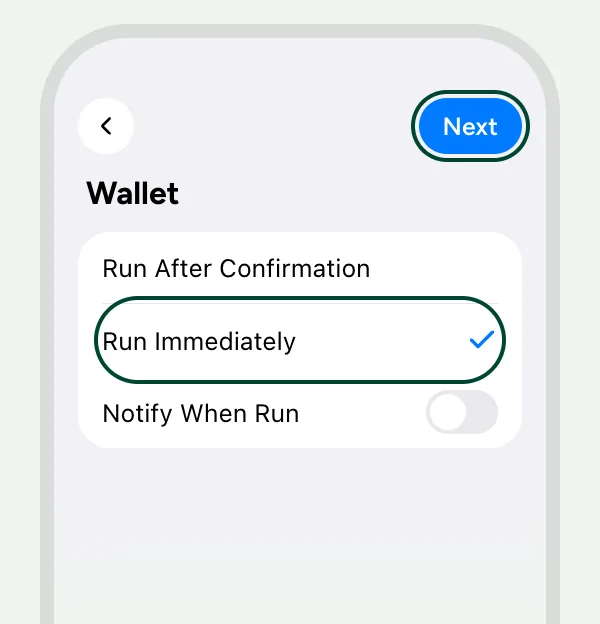
This is how it looks in Shortcuts Add the Kesef shortcut
After "Next", Shortcuts asks what to do on each payment. Don’t tap "New Blank Automation": scroll down to "My Shortcuts" and tap "Kesef - Apple Pay". That’s it.
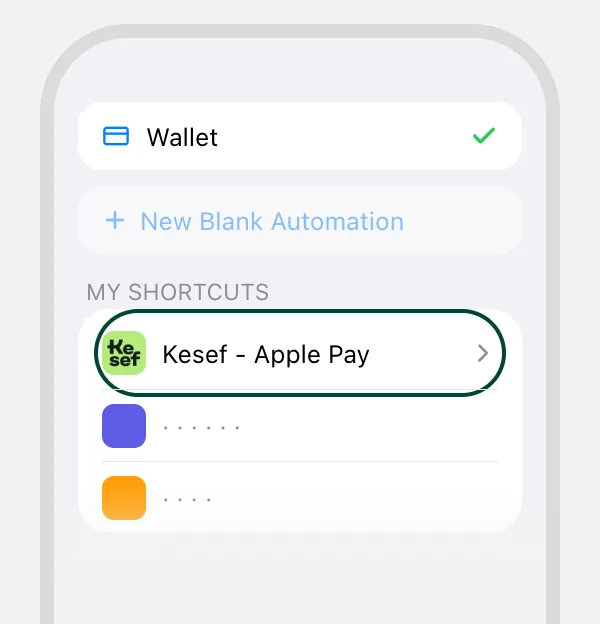
This is how it looks in Shortcuts
What it covers and what it doesn't
The automation covers the payments you make by tapping your iPhone in a shop. For everything else (cash, transfers, online purchases or the physical card), Kesef has quick ways to log it:
- By voice: say everything from the day in one go and Kesef splits each expense out with its category.
- With a double tap on the back of your iPhone, the Action button or Siri: Kesef asks for the expense and it's logged without opening the app.
- By hand, in seconds: type the amount and the category, currency and payment method are already filled in.
Any card in Wallet, from any bank, in any country.
If your bank doesn't report the amount
Some banks don't pass the amount to Wallet. When that happens the payment isn't lost: it stays pending, with the merchant and the date, and you complete it with one tap. If your bank takes a while to confirm, Kesef still lets you know so you can finish it.
Is it free?
It's part of Kesef Pro, which costs USD 5 per month or USD 35 per year, with a 14-day free trial on the yearly plan, or USD 100 as a one-time lifetime purchase. The rest of Kesef is free and uncapped: logging by hand, groups, recurring expenses and 150+ currencies.
Frequently asked questions
Does it work with iOS 27?
Yes. It works on iPhones with iOS 17 or later and it's compatible with iOS 27. What changes is the setup: on iOS 27 it's 3 steps and on iOS 17 to 26 it's 4. Kesef's guide shows you the ones for your iPhone.
Do I have to open Kesef every time?
No. Once it's set up, the automation runs on its own: you pay with Apple Pay and the expense lands in Kesef with a notification, without opening the app.
Can Kesef see my card?
No. Kesef only learns the amount and the merchant of each payment. It doesn't see the card number and it can't pay with it.
Does it work on Android?
No. Apple Pay is iPhone-only. On Android, if you're in one of the seven Mercado Pago countries, you can connect your account so your payments come in on their own, and you can always log expenses by voice or by hand.